
Print it at the right size.
If the printer shrinks the page even a little, the pieces stop fitting together. Setting the scale takes a minute, and it saves the whole project.
Print only your size
- Open the file in Adobe Acrobat Reader.
- Open the Layers panel: the stacked sheets icon, in the bar on the right.
- Click the eye icon next to every size that is not yours, until its box is empty. Only your size keeps its eye.
- Leave the layers as they are, and go to the next step to print.
Each size is its own layer, so turning the others off saves paper and keeps the lines of other sizes out of your way.
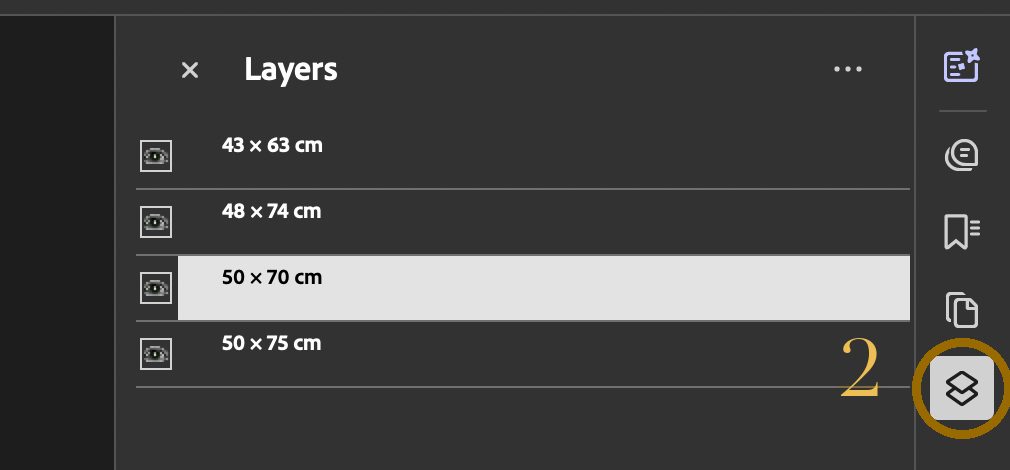
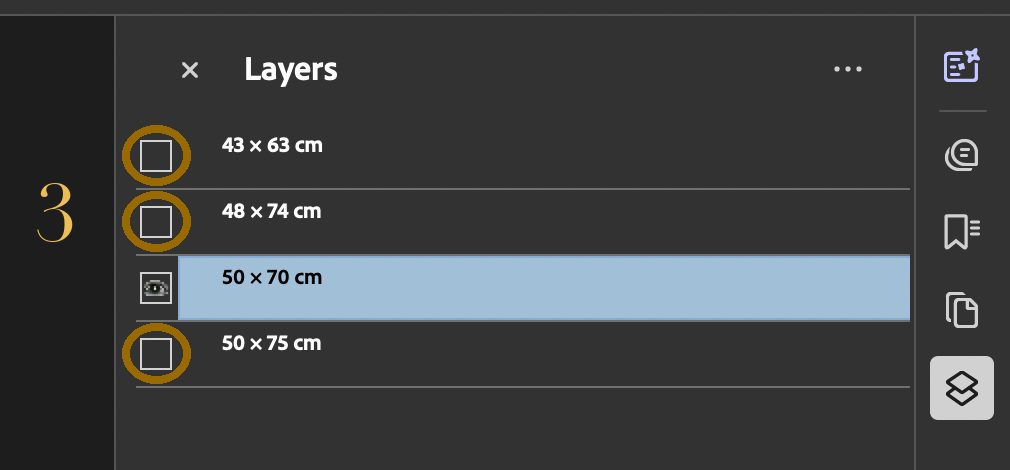
Screens from the Envelope pillowcase file. Your pattern lists its own sizes.
Print at 100 percent
- Open File, then Print.
- Under Page Sizing & Handling, click Size.
- Choose Actual size. Leave Shrink oversized pages and Fit unchecked.
- Under Pages, type 1, and print only the cover.
Acrobat shrinks the pattern unless you tell it not to.
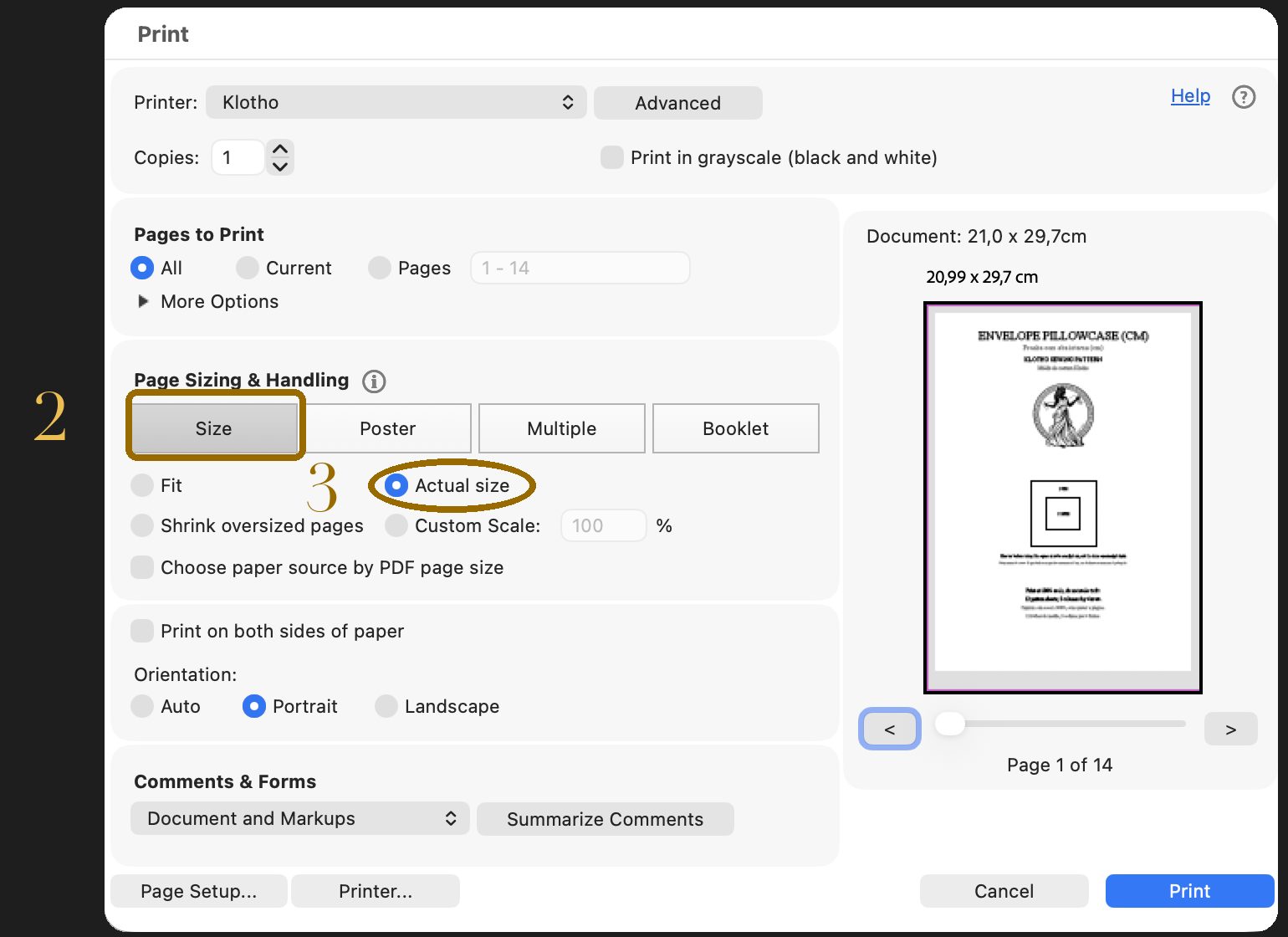
Screens from the Envelope pillowcase file. Your pattern lists its own sizes.
Check the scale
- Measure the two squares on the cover with a ruler: the large one must be exactly 5 cm, and the small one inside it exactly 1 in.
- If both are right, print the rest with the same settings.
If a square is off, the scale changed. Go back to the print window, check Actual size, and print the cover again. Do not print the rest until both squares are right.
On the printed cover, the large square measures exactly 5 cm and the small one exactly 1 in.
These steps are for Adobe Acrobat Reader on a Mac. On Windows or another system the screens look different, but the path is the same.